

Log in
- Type your address in Email.
- If a security check shows, complete it. The check comes from Cloudflare.
- Press Send code.
- Type the code from the email in Code, then press Log in.
If you see “The security check did not load. Turn off ad blockers for this site, then reload the page.”, do what it says.
Approval
Each new login waits for our approval. Until then, the login screen says “Your login is waiting for approval.” When we approve it, the login screen shows Set up your wallet. Follow the Quick start from there.Sessions
A login session ends 7 days after you log in. It also ends after one day without use. Then the console says “This login has ended. Log in again.”Your wallet
The wallet page creates the wallet in your browser, through Privy. You own the wallet. Only you can export its private key. LP-Mimic trades from your wallet with its own trading permission. The trading permission works only within fixed rules. Privy holds these rules and refuses any transaction outside them.What the trading permission can do
- Open, change and close positions on Meteora DLMM.
- Swap tokens through Jupiter, for example to buy a pool’s token for a copy, or to sell it after a close.
- Pay the network fees.
- Move SOL to your own wallet or to your wallet’s wrapped SOL account.
- Make small SOL payments, capped at 0.001 SOL each, to a service that delivers transactions to Solana.
- Create, empty and close token accounts that belong to your wallet. The rent from a closed token account goes back to your wallet.
What the trading permission cannot do
- It cannot sign a plain token transfer to another address.
- It cannot sign a withdrawal. You sign every withdrawal yourself.
- It cannot export your private key. LP-Mimic never sees the key.
Only you and LP-Mimic
During setup, the wallet page removes any other access from the wallet. After setup, only you and LP-Mimic can use it.More than one wallet
One login can own up to 5 wallets. Each wallet has its own copies and settings. To add one, open the wallet menu and press Add wallet. To switch, pick the wallet under Your wallets in the same menu.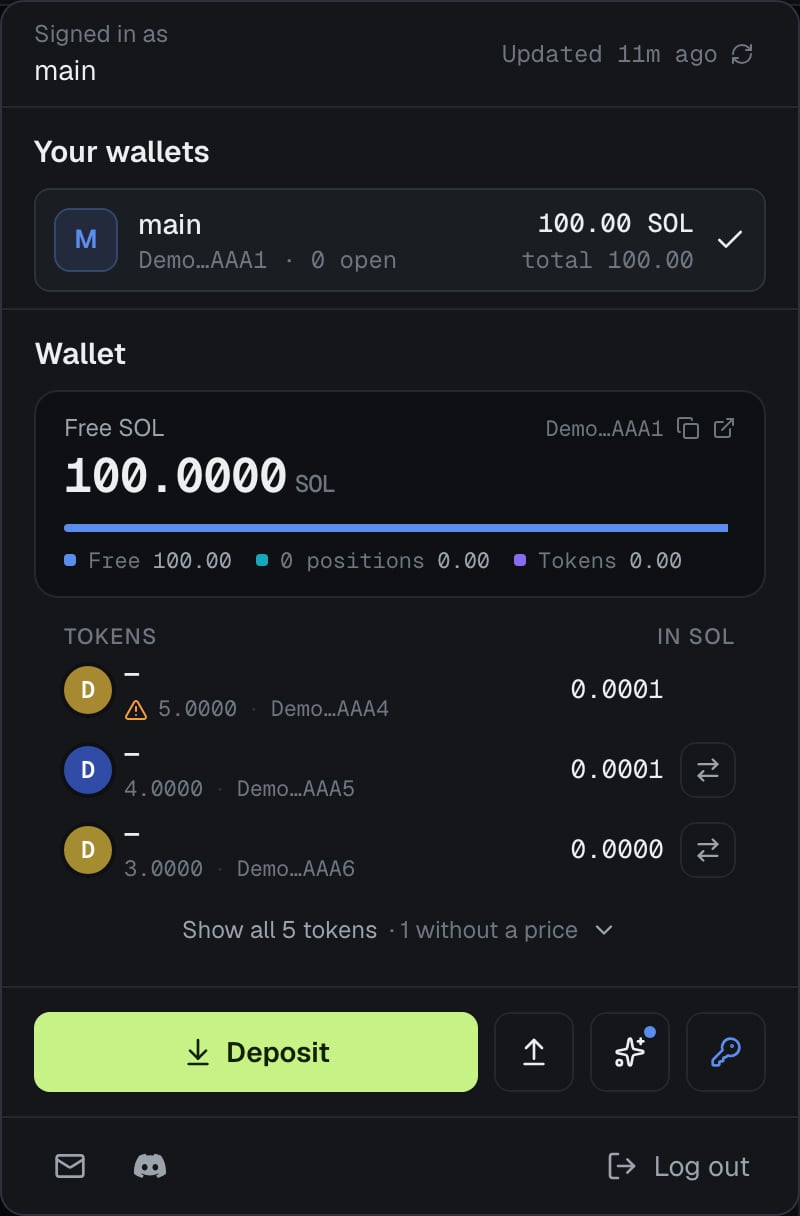
Deposit
- Open the wallet menu. It is the button in the console header that shows your free SOL.
- Press Deposit.
- Copy the Wallet address, or scan the QR code.
- Send SOL on Solana to that address. After you paste the address, check its first and last groups.
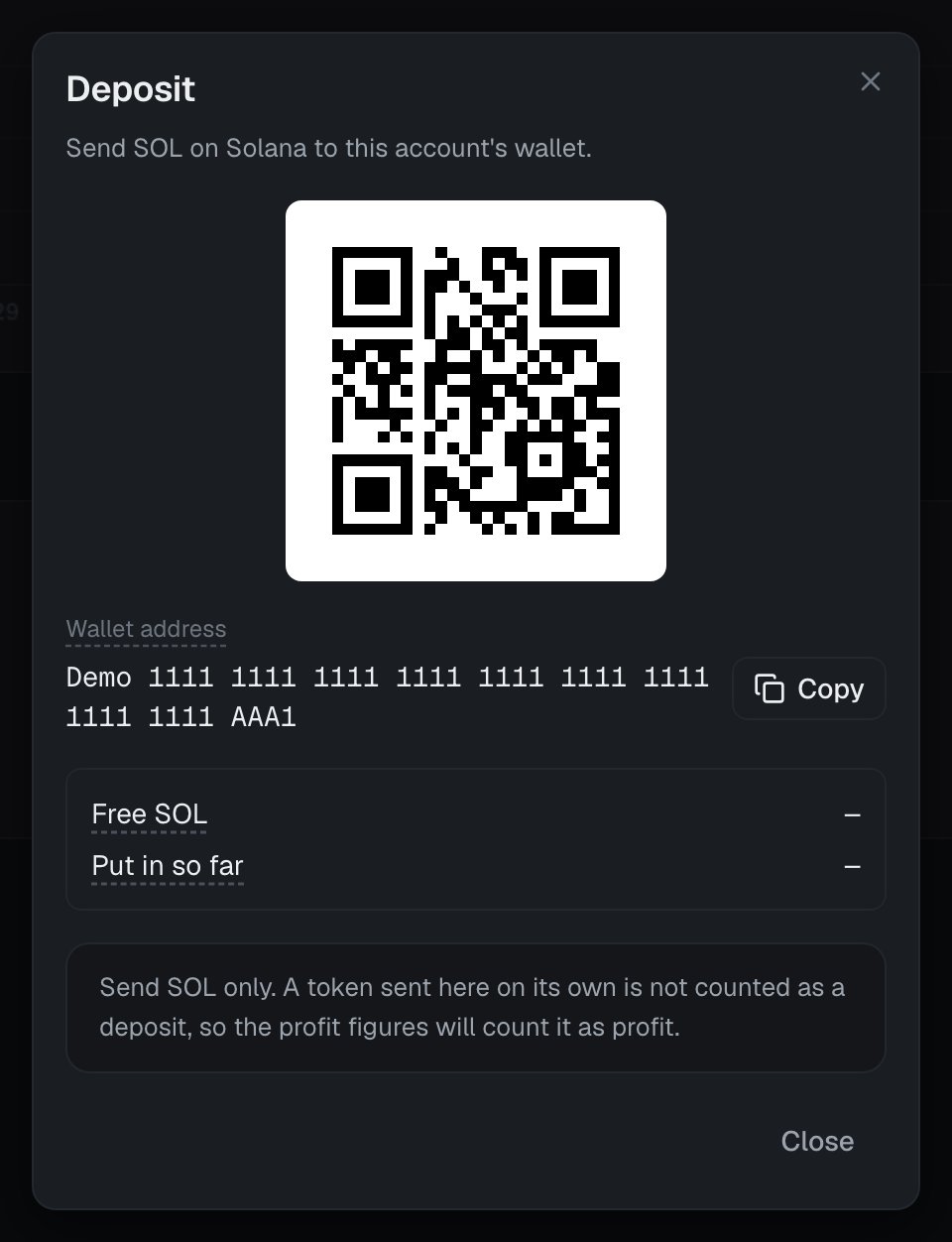
Example only. Do not send SOL to this address.
- Free SOL: the SOL the wallet holds outside positions. A deposit shows here after the next wallet check.
- Put in so far: your deposits less your withdrawals.
Withdraw
You can withdraw free SOL only. Free SOL is the SOL the wallet holds outside positions, less the network fee. SOL inside open positions cannot be withdrawn. Tokens and wrapped SOL do not count. Your Wallet reserve also stays in the wallet while Copying is on for any wallet, or while a position, a kept token or a transaction is open. To withdraw everything, turn off Copying for every wallet, then wait for open copies to close.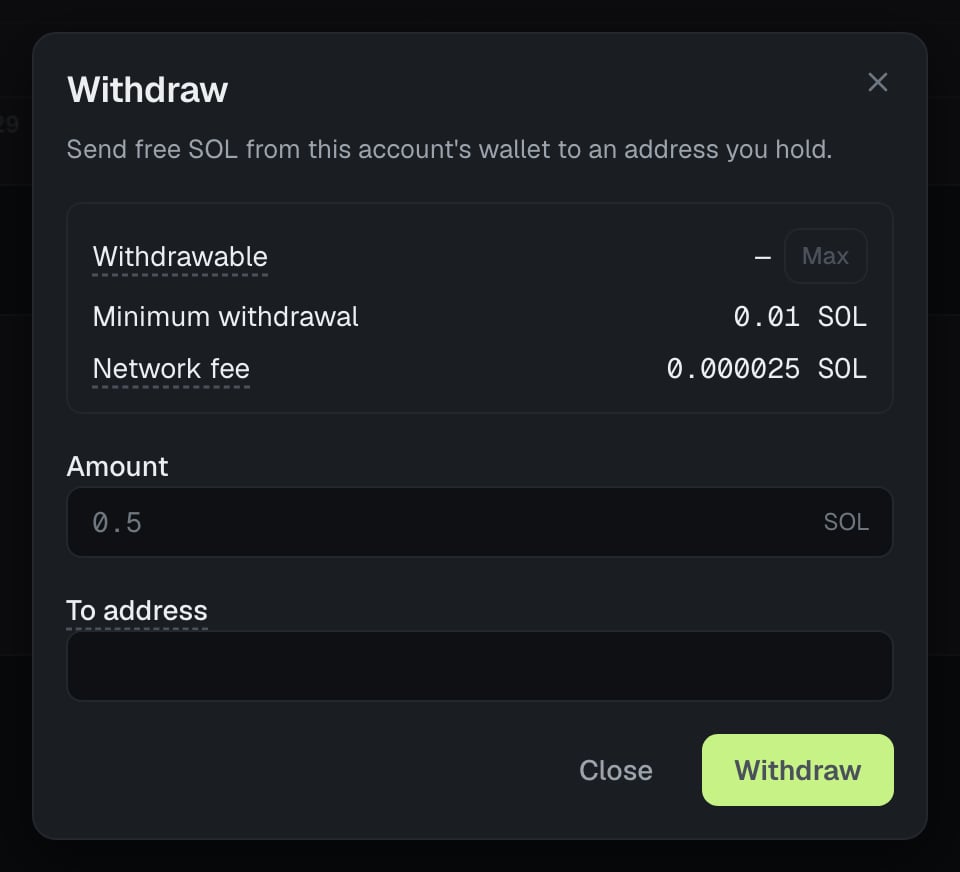
- Open the wallet menu and press Withdraw (the arrow-up button).
- Check Withdrawable. Press Max to take all of it, or type an Amount.
- Type the To address. This must be a Solana address that you hold.
- Press Withdraw, then Continue on the wallet page.
- On the wallet page, log in with a new email code.
- Check the amount and the address. Press Confirm only if both are correct.
- When the page says “The transaction is ready. Approve it to send the SOL.”, press Approve.
- Wait for “Done. The SOL is sent.” The page links to the transaction on Solscan.
- The Minimum withdrawal is 0.01 SOL.
- The Network fee is at most 0.000025 SOL. The wallet pays it on top of the amount.
- You can have one open withdrawal at a time.
- You cannot send to your LP-Mimic wallet itself, or to a program address.
- Withdraw everything, or leave at least 0.00089088 SOL in the wallet. A smaller remainder is refused.
- Each step on the wallet page has 5 minutes. The page shows the time left. After that, the withdrawal expires and you ask again.
Export your private key
You can export the private key of your wallet. The key shows only in Privy’s own screen. The wallet page and LP-Mimic never see it.- Open the wallet menu and press Export private key (the key button). You can also open Settings → General and press Export next to Private key.
- On the wallet page, log in with a new email code.
- Read the warning, then press Export key. Privy’s screen shows the key.
If the trading permission is removed
If LP-Mimic’s trading permission is removed from your wallet, LP-Mimic cannot trade from it any more:- All trading on that account is paused.
- LP-Mimic cannot close your open positions. To close them, export your private key, import it into a Solana wallet app, and close the positions on Meteora.
- The wallet menu shows “No trading permission” for that wallet.