

Open the dialog
- On Discover, press Copy on a wallet’s row. The dialog’s button is Start copying. Press it to save the settings and start copying.
- On Copy LP, press a wallet’s row, or open its menu and press Edit settings. The dialog’s button is Save. It is on only after you change a field.
The top of the dialog
- Name: the name of the wallet in the console. Press it, or press the pen, to rename it.
- For a wallet you already copy, a strip shows Open copies, Open in total and Your copy now. Your copy now is the size a typical copy opens at with the saved settings.
- If another wallet you know has the same first and last 4 characters, a red warning shows both addresses. Scammers make such addresses. Check the full address before you copy.
1. How much to copy
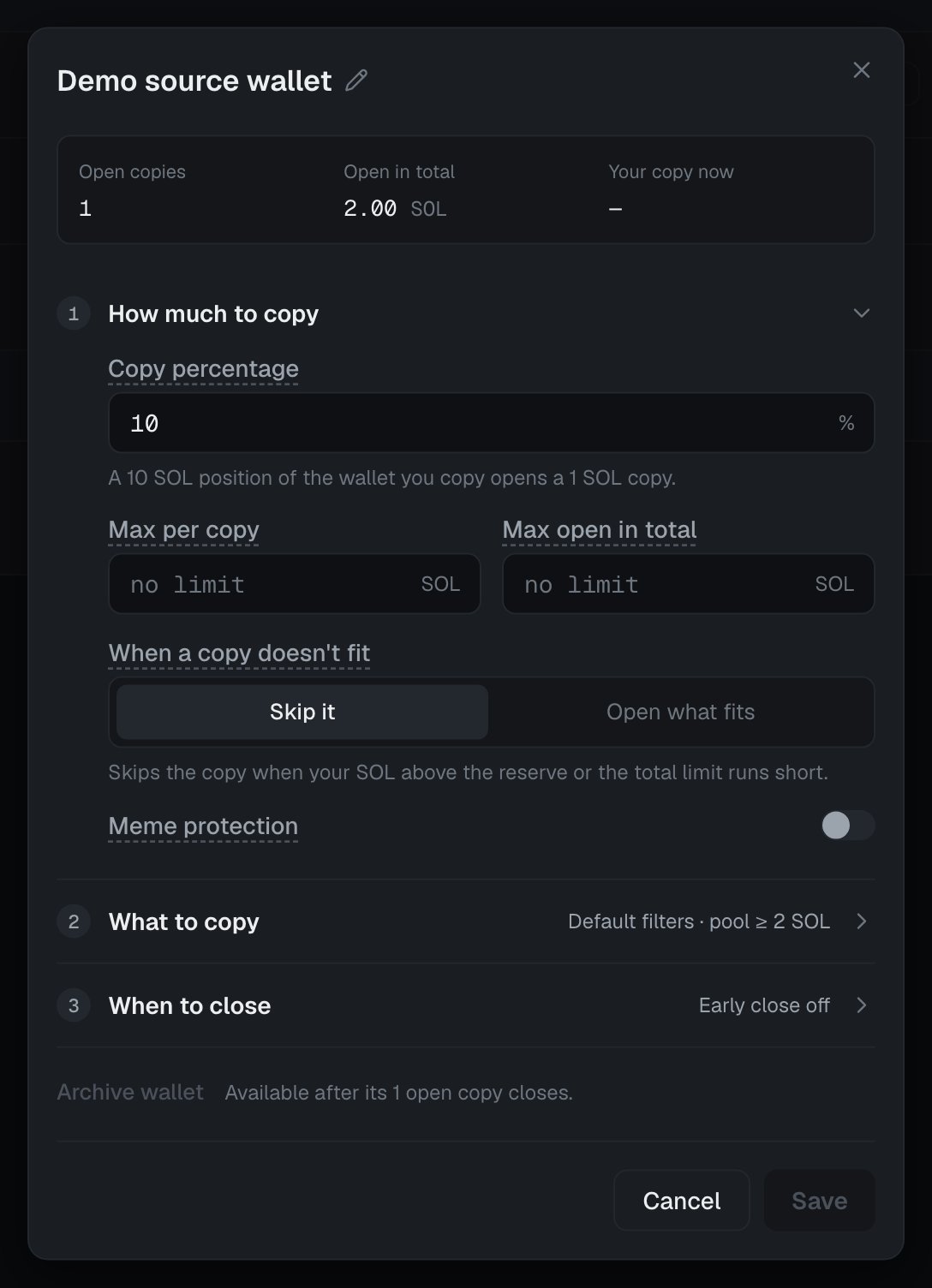
Copy percentage
Each copy is this percent of the source’s position. 100 is the same size. 200 is twice its size. The most is 999, with up to three decimals. When you change it, open copies change to the new percent the next time the source adds or removes liquidity. Under the field, a line shows what the percent means:- “Their typical position … SOL → your copy … SOL.” The typical position is the middle size of the source’s positions open now or closed in the last 30 days.
- Before that is known: “A 10 SOL position of the wallet you copy opens a … SOL copy.”
Max per copy
The most one copy of this wallet may use. Blank is no limit. In a USDC pool, the limit is the same value at the current price.Max open in total
The most that may be open in copies of this wallet at once. Blank is no limit. A copy over it is skipped, or made smaller with Open what fits. When you set a limit, a bar shows how much is open now.When a copy doesn’t fit
What to do when a copy needs more than your SOL above the Wallet reserve, or more than Max open in total:- Skip it: the copy does not open. This is the choice for a new wallet.
- Open what fits: a smaller copy opens in the same price range, as large as both limits allow.
Meme protection
Some sources put mostly the token into a position, not SOL or USDC. Then your copy must buy the token first, and sell it after the close. Meme protection skips a new copy like this. Meme protection is on for a new wallet. When it is on, the line beside the switch shows its two values, for example “over 50 % token: skip”. Press the line to open them:- Max token share: the most of the source’s position, by value, that may be the token. 50 % by default. A position with more is skipped, or opened at the meme copy size.
- Meme copy size: a copy that meme protection would skip opens at most this size instead. Later additions by the source keep it under that size. Blank skips the copy.
2. What to copy
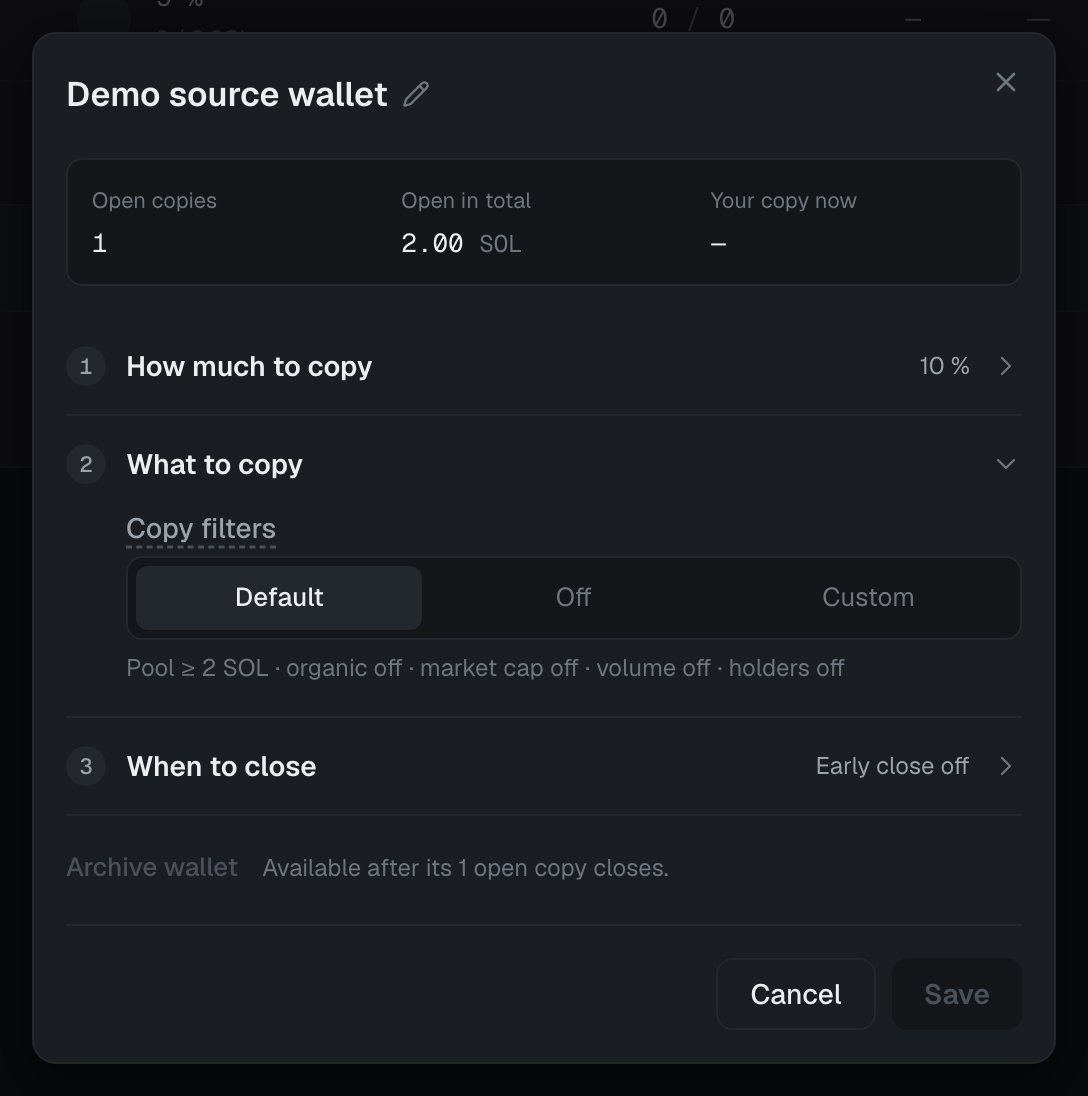
Copy filters
Rules that a new copy must pass. They never close an open copy, and they do not check later additions to an open copy. Pick one mode:- Default: the values from Settings → Filters apply. A line shows them, for example “Pool ≥ 2 SOL · organic off · market cap off · volume off · holders off”.
- Off: “No pool or token rules apply to this wallet’s copies. Your blacklist and the token safety checks still apply.”
- Custom: this wallet’s own values. The fields start at the values that apply now.
In a pool with little SOL, the source’s own sale at its close moves the price before your copy can sell. Least SOL in the pool reduces that risk.
3. When to close
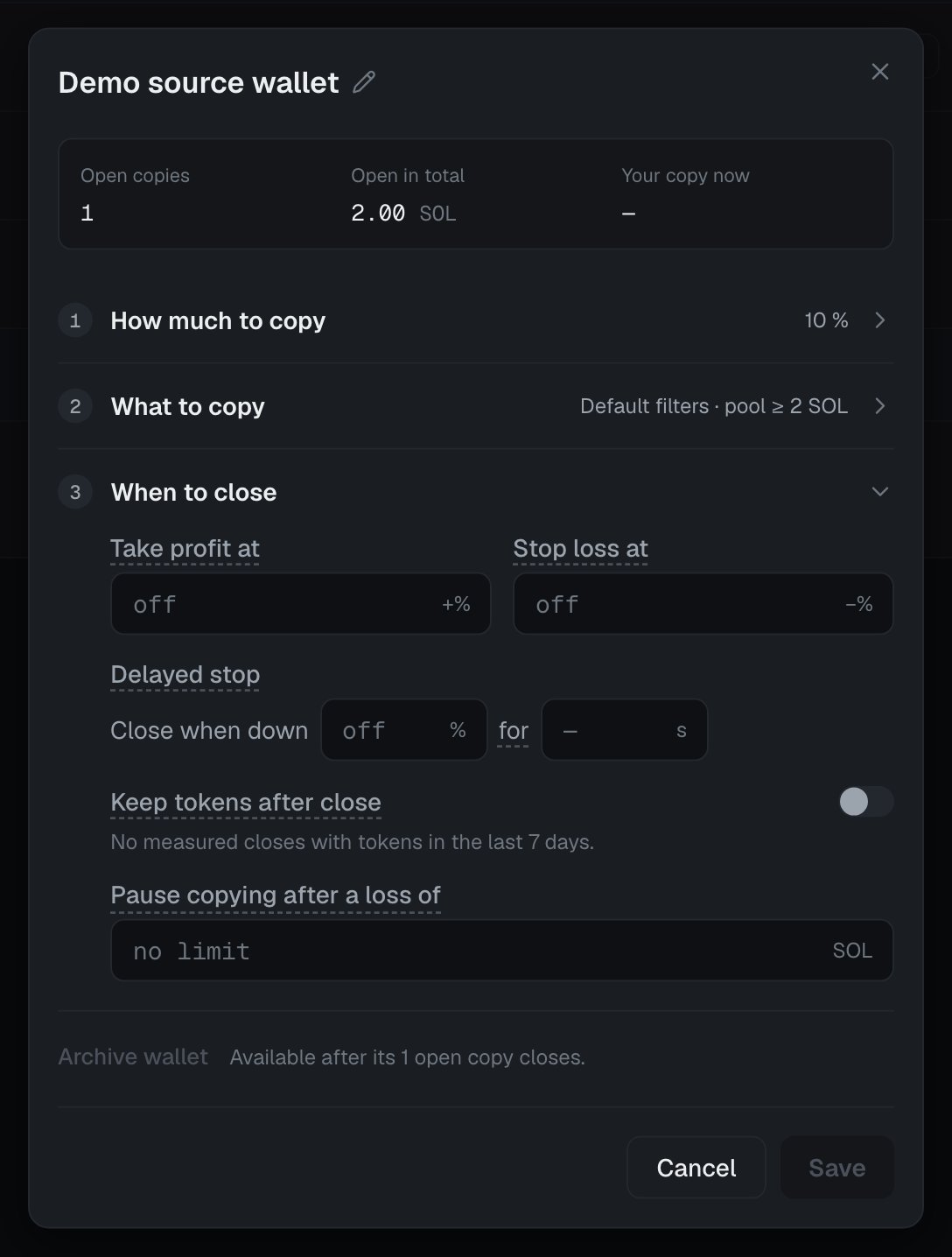
Take profit at
A copy closes when its profit reaches this percent of what it put in. A change applies to copies opened after it.Stop loss at
A copy closes as soon as its loss reaches this percent of what it put in. The delay and slippage can make the final loss larger. The most is 100 %. A change applies to copies opened after it. With no stop loss, a copy stays open until its source closes. If the source holds a position that loses everything, the copy loses with it.Delayed stop
The line reads “Close when down … % for … s”. The copy closes when its loss stays at or past this percent for the whole wait. A short dip does not close it.- Set the percent below Stop loss at.
- Set the wait from 10 to 3600 seconds.
- Set both or neither.
Keep tokens after close
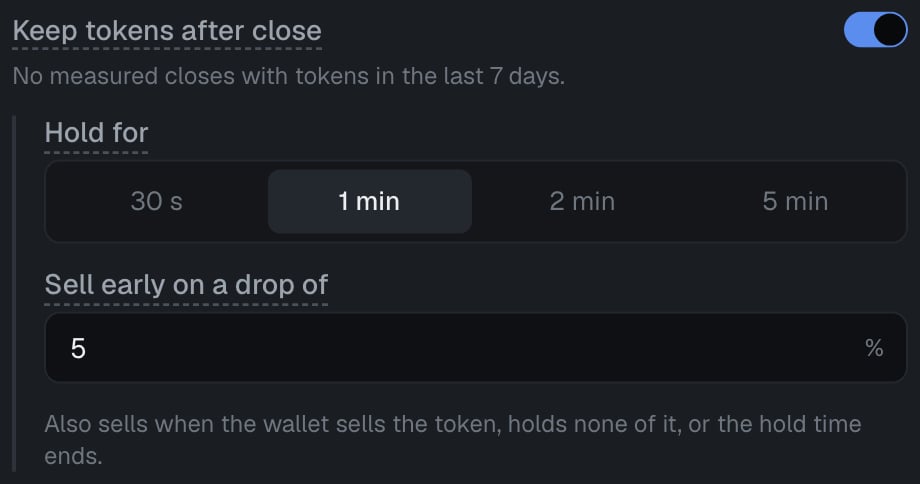
- Hold for: 30 s, 1 min, 2 min or 5 min. 1 min by default. The longest the copy keeps the token after the source closes. Then LP-Mimic sells it.
- Sell early on a drop of: LP-Mimic sells the kept token at once when its value in SOL falls this far below its value at the close. 5 % by default.
- the copy closed because its source closed (not at your stop loss, take profit or by hand),
- the token is not a currency that pools are priced in, such as SOL or USDC,
- a swap route can price the token. Without a price, LP-Mimic sells it at once.
How often this wallet puts tokens back
Under the switch, a line shows how often this wallet put the same token back after a close: “Put the same token back: … % in 1 min · … % in 5 min · … closes, … days” A bar shows the 5-minute share. If the wallet put the token back within 5 minutes after fewer than half of its closes, a warning shows: “This wallet rarely puts tokens back. Keeping them only adds price risk.” If the wallet has no close with tokens in that time, the line says “No measured closes with tokens in the last … days.”Why it helps only some wallets
Some sources close a position, keep the token, and put the same token into a new position soon after. Without this switch, your copy sells the token at the close and buys it back for the next copy. Each sale and each purchase costs swap fees and a worse price. With the switch on, the new copy uses the kept token, so it skips one sale and one purchase. This saves money only when the source puts the same token back. If it does not, you only hold the token while its price moves. Look at the put-back line before you turn the switch on.Pause copying after a loss of
Copying of this wallet pauses when its closed copies lose this much, in SOL. Profits of other closed copies of the wallet count against the losses. Blank is no limit. When the wallet pauses, its row on Copy LP shows a red warning mark. Point at it to read the reason. No new copies of the wallet open. Open copies stay open. To resume, raise the limit. Reset the loss count on the Loss limit strip also clears this pause. The Loss limit for all your copies, at the top of Copy LP, applies too. Read Managing copies.Archive wallet
At the bottom of the dialog, Archive wallet stops watching and copying this wallet. It is available only after all open copies of the wallet close. You can type Why archive it. If you add this address again, you see this reason first. Read Managing copies.Tax badge
Some tokens take a fee on every transfer. The console shows such a token with a tax badge beside its name, for example 2% tax. Point at the badge, or tap it on a phone, to read the fee: its percent, its cap per transfer, a planned change, and whether the issuer can change it. A copy pays this fee about four times: when it buys, deposits, withdraws and sells the token. LP-Mimic does not copy a token whose fee, now or planned, is above its limit. On Activity, such a copy says “it takes a … % fee on every transfer, above the … % limit”.Settings that apply to all your copies
These are not in the copy wallet dialog. They are in Settings.
Below 3 % slippage, the console shows a note: buying the token fails more often when the price moves. Below 0.00005 SOL max priority fee, it shows a note that a copy’s open or close can land late when the network is busy.
Some limits are fixed by LP-Mimic, and you cannot change them. A purchase that would move the price more than a set limit (price impact) is skipped, and nothing is spent. Every transaction’s priority fee stays under a limit that LP-Mimic sets for every account. Read Fees.